
Advanced IP Scanner – Free Network Scanner for Windows
Advanced IP Scanner is a fast, free, and easy-to-use network scanning tool for Windows. It helps you discover devices connected to your local network, identify IP and MAC addresses, access shared folders, and manage computers remotely. With its simple interface and powerful scanning features, you can easily monitor network devices and manage your LAN.
Download ZIP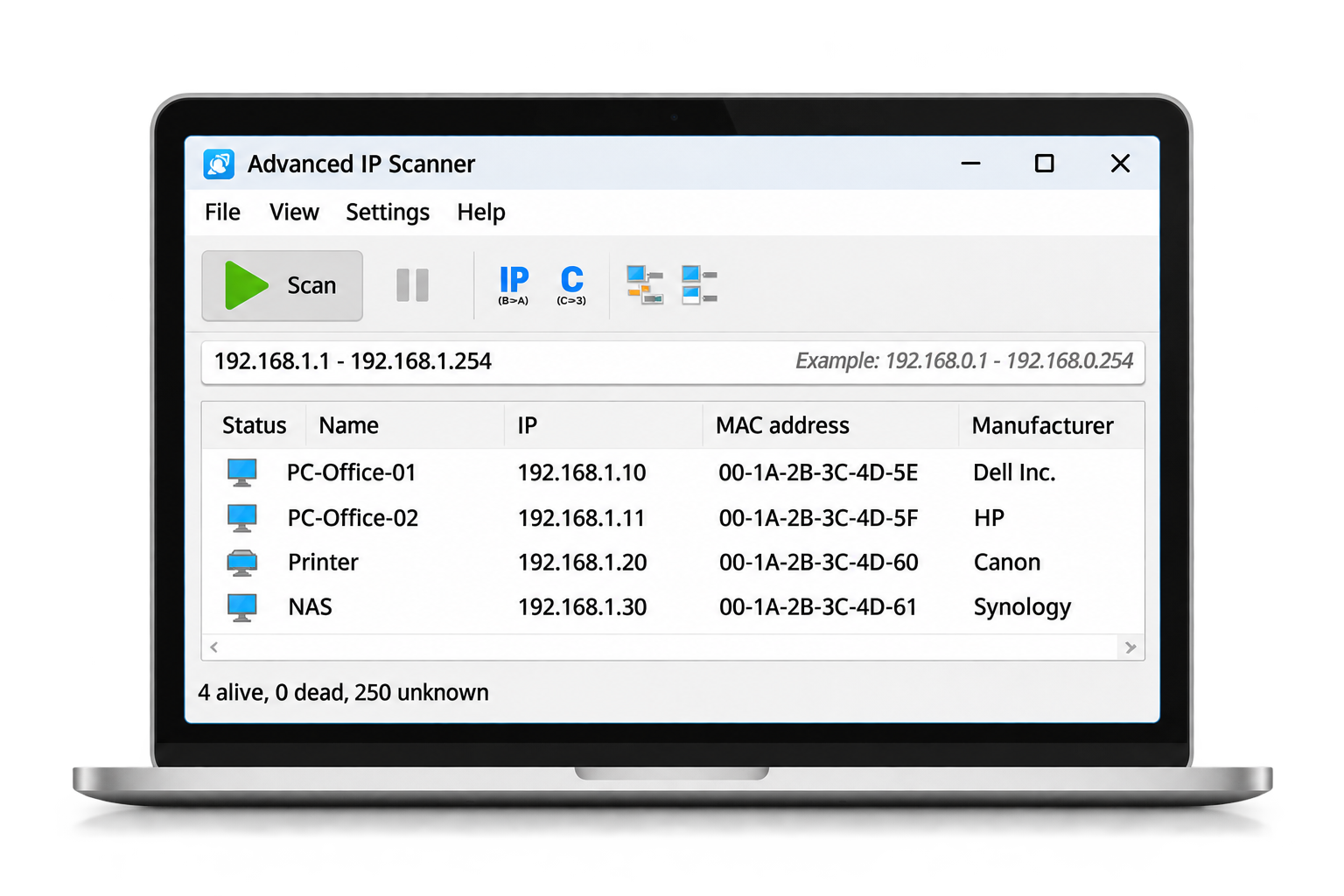
What Is Advanced IP Scanner?
Advanced IP Scanner is a free network scanning utility designed to help Windows users discover and identify devices connected to their local area network (LAN). It simplifies network management by displaying connected computers, IP addresses, MAC addresses, and device names in one organized interface.
Instead of manually checking each device or accessing router settings, users can scan an IP address range and quickly view available network devices. The software is useful for identifying connected systems, troubleshooting network connections, and reviewing shared network resources.
Advanced IP Scanner also provides convenient features such as remote computer access, shared folder browsing, Wake-on-LAN, and remote shutdown capabilities. Its simple interface makes it suitable for home users, IT professionals, and network administrators.
Key Features of Advanced IP Scanner
Advanced IP Scanner provides useful tools to discover, identify, and manage devices connected to your local network. From fast network scanning to remote computer access, its features help simplify everyday network administration and troubleshooting.
Fast Network Scanning
Quickly discover computers and other reachable devices within a selected IP address range. Advanced IP Scanner simplifies local network discovery by displaying detected devices in one organized list, helping users review connected systems without checking each address manually.
IP & MAC Address Detection
Identify available IP addresses, MAC addresses, and device names for discovered network devices. These details help users recognize connected computers, maintain device records, and investigate unexpected connections within their local networks.
Remote Computer Access
Connect to compatible computers using Remote Desktop Protocol (RDP) and Radmin integration. This functionality allows authorized users to access remote workstations and perform administrative tasks when the required permissions and settings are available.
Shared Folder Access
Locate and open accessible shared folders on computers connected to your network. Instead of entering network paths manually, users can explore available shared resources directly from discovered devices, provided the necessary sharing permissions are enabled.
Remote Shutdown & Wake-on-LAN
Manage supported computers remotely using shutdown and Wake-on-LAN functions. These tools can help administrators control authorized network workstations without visiting each computer, depending on device compatibility, permissions, and network configuration.
Export Network Scan Results
Save network scanning results in supported formats such as CSV, HTML, and XML. Exporting device information makes it easier to document network configurations, maintain computer inventories, and review previous scanning records when needed.
How Does Advanced IP Scanner Work?
Advanced IP Scanner simplifies network discovery by helping you find and identify devices connected to your local area network. Follow these four steps to scan IP addresses, view connected devices, and access available network tools.
Select Your Network Range
Open Advanced IP Scanner and enter the IP address range you want to scan. You can select your local subnet or specify a custom range to discover devices within your network.
Start the Network Scan
Click the Scan button to begin checking your selected IP addresses. The software searches for reachable devices and collects available network details. Scanning time depends on network size and connection conditions.
View Discovered Devices
Review the scanning results displayed in an organized list. Advanced IP Scanner shows available information such as IP addresses, MAC addresses, device names, and accessible network resources.
Manage Network Resources
Select a discovered computer to explore available functions. Depending on device settings and permissions, you can access shared folders, start remote connections, manage supported systems, or export your scanning results.
How to Download and Install Advanced IP Scanner
Getting started with Advanced IP Scanner is simple. Follow these four steps to download the application, choose your preferred setup option, and begin discovering devices on your Windows network.
Download the Software
Visit the official Advanced IP Scanner website and download the Windows application. Save the installer to your computer.
Open the Downloaded File
Locate the downloaded application in your Downloads folder. Open the file and follow the displayed setup instructions.
Choose Your Setup Option
Select the standard installation method or use portable mode to run Advanced IP Scanner without traditional installation.
Launch and Start Scanning
Open Advanced IP Scanner, enter your network's IP range, and click Scan to discover reachable network devices.
Ready to Scan Your Network?
Get started with Advanced IP Scanner and discover connected computers, IP addresses, and network resources with an easy-to-use Windows utility.
Advanced IP Scanner System Requirements
Advanced IP Scanner is designed for Windows computers and provides useful network discovery and management features. Review the following software information and compatibility details before getting started.
| Specification | Details |
|---|---|
|
Operating System
|
Microsoft Windows |
|
Windows Versions
|
Windows 11, 10, 8 and 7 |
|
Software Category
|
Network Scanning and Management Utility |
|
License
|
Free |
|
Network Type
|
Local Area Network (LAN) |
|
Export Formats
|
CSV, HTML and XML |
|
Portable Version
|
Available |
|
Main Function
|
IP Scanning and Network Device Discovery |
Compatibility Note: Advanced IP Scanner requires access to the network you want to scan. Remote management features may require additional permissions, supported hardware, or configuration on the destination computers.
Benefits of Using Advanced IP Scanner
Advanced IP Scanner helps simplify everyday network management by providing convenient tools for discovering connected devices, identifying network information, and accessing supported administrative features.
Easy Network Discovery
Advanced IP Scanner makes it easier to identify computers and other reachable devices connected to your local network. Users can scan an IP address range and review discovered systems without manually checking each device.
Convenient Network Management
View available IP addresses, MAC addresses, computer names, and network resources from one interface. This organized approach helps users maintain network visibility and perform routine administrative tasks more conveniently.
Helpful for Network Troubleshooting
Network scanning results can help identify whether particular devices are reachable on a local network. This information supports basic connectivity checks and makes it easier to investigate common network communication problems.
Free and User-Friendly
Advanced IP Scanner is available as a free Windows network scanning utility. Its straightforward interface makes basic network discovery accessible to home users, IT support technicians, and network administrators.
Who Should Use Advanced IP Scanner?
Advanced IP Scanner provides practical network discovery tools for different types of users. Whether you are reviewing devices on a home network or managing office computers, its features help simplify network identification and everyday administration.
Home Users
Home users can discover reachable devices connected to their local network, identify IP addresses, and review basic device information. Advanced IP Scanner makes it easier to understand which computers and other supported devices are accessible on a home network.
IT Professionals
IT professionals can use Advanced IP Scanner to locate computers, review network addresses, and investigate connectivity issues. Remote access integration also supports authorized troubleshooting and maintenance tasks across compatible Windows systems.
Network Administrators
Network administrators can identify connected systems, access permitted shared resources, and export network scanning results. These capabilities help maintain device records and support routine administration of local computer networks.
Small Businesses
Small businesses can review connected office workstations and maintain basic network inventory information. Advanced IP Scanner offers a simple way to discover reachable computers and support everyday network management without complex setup.
Is Advanced IP Scanner Safe to Use?
Advanced IP Scanner is a legitimate network administration utility designed to discover devices and manage supported network resources. Safe usage depends on downloading authentic software, maintaining appropriate permissions, and following responsible network practices.
Safe and Responsible Network Scanning
Advanced IP Scanner provides useful tools for identifying reachable computers and managing local network devices. To maintain a secure environment, users should obtain the application from a trusted source, review system permissions, and use its scanning and remote administration features only on authorized networks.
Download From Trusted Sources
Obtain Advanced IP Scanner from its official developer website and avoid modified or unverified installation files.
Scan Authorized Networks
Use network discovery functions only on networks you own or have permission to manage.
Review Remote Access Permissions
Remote desktop connections, shutdown operations, and shared folder access require appropriate permissions and configuration.
Maintain Windows Security
Keep your operating system updated and continue using appropriate antivirus and firewall protection.
Frequently Asked Questions About Advanced IP Scanner
Find answers to common questions about Advanced IP Scanner, including downloading, installation, Windows compatibility, network scanning, device discovery, and remote management features.
Is Advanced IP Scanner free to download?
Yes, Advanced IP Scanner is free to download and use. It provides network discovery and management features without requiring a paid software license. Users can scan local networks, identify connected devices, and access supported network management tools.
Does Advanced IP Scanner work on Windows 11?
Yes, Advanced IP Scanner supports Windows 11 along with Windows 10, Windows 8, and Windows 7. It is designed for Windows computers and offers a simple interface for discovering devices connected to local networks.
Can Advanced IP Scanner detect devices connected to Wi-Fi?
Yes, Advanced IP Scanner can discover reachable devices connected through a Wi-Fi network when the network configuration permits communication between those devices. Available information may include IP addresses, MAC addresses, and device names.
Can I use Advanced IP Scanner without installing it?
Yes, Advanced IP Scanner offers a portable operating option. This allows users to run the application without completing a traditional installation. Portable operation is useful for technicians who need flexible network scanning tools.
Does Advanced IP Scanner support remote access?
Yes, Advanced IP Scanner supports remote connections through Remote Desktop Protocol (RDP) and Radmin integration. Authorized users can initiate remote connections to compatible computers when the necessary permissions and remote access settings are configured.
Is Advanced IP Scanner available for Mac or Linux?
Advanced IP Scanner is designed for Microsoft Windows. Official native versions for macOS and Linux are not available. Users of these operating systems may need alternative network scanning tools.
Does Advanced IP Scanner require an internet connection?
An internet connection is generally not required to scan devices on an accessible local network. However, internet access may be necessary to download the application, check for updates, or access online resources.
How do I scan a network using Advanced IP Scanner?
Open Advanced IP Scanner and enter the IP address range you want to scan. Click the Scan button to start discovering reachable devices. The application displays available details such as IP addresses, computer names, and MAC addresses in an organized results list.
Can Advanced IP Scanner find IP and MAC addresses?
Yes, Advanced IP Scanner helps users identify IP addresses and MAC addresses associated with discovered network devices when that information is available. These details are useful for device identification, network documentation, and basic connectivity troubleshooting.
Can Advanced IP Scanner access shared network folders?
Yes, Advanced IP Scanner can help users locate and open accessible shared folders on network computers. Access depends on the sharing configuration and permissions assigned to the user on the destination computer.
Can Advanced IP Scanner shut down remote computers?
Yes, Advanced IP Scanner includes remote shutdown and Wake-on-LAN functionality for supported computers. These features require appropriate administrative permissions, compatible hardware, and correctly configured network settings.
Can I export network scan results from Advanced IP Scanner?
Yes, Advanced IP Scanner supports exporting scanning results in formats including CSV, HTML, and XML. Exported reports can help users maintain network device records, document discovered computers, and review scanning information when needed.